

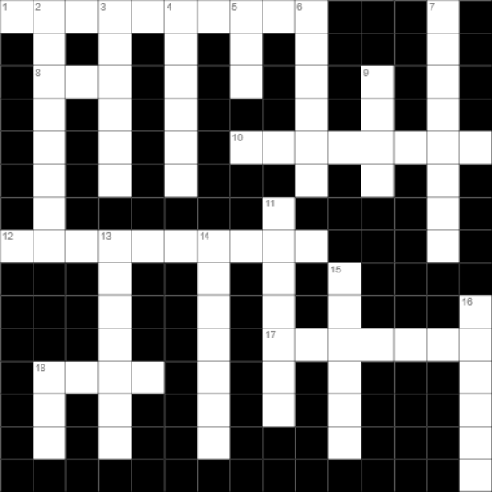
Whether you run an educational blog, a language-learning community, a puzzle website, or just want to keep your readers engaged with something fun, crosswords are a timeless way to achieve that. EV Crosswords is a free WordPress plugin that makes adding interactive crossword puzzles to any page or post surprisingly easy — with or without AI assistance.
This plugin lets you create, manage, and embed crossword puzzles directly from your WordPress admin dashboard. It integrates with the WordPress Block Editor (Gutenberg), so adding a crossword to a page is as simple as inserting any other block.
Through the companion plugin EntGenAI, you can use leading AI providers — including OpenAI, Anthropic, Google Gemini, and even a locally-running Ollama model — to generate a themed word list and hints for you. From there, the plugin automatically lays the words out into a proper crossword grid.
How to Install It
Step 1 — Install the companion plugin
EV Crosswords works alongside EntGenAI, which handles the AI provider connections. Install and activate EntGenAI from your Plugins screen first, then navigate to its settings to configure your preferred AI provider and paste in your API key.
If you don’t want to use AI at all, you can still install EntGenAI and leave it unconfigured — manual crossword creation works without it.
Step 2 — Install EV Crosswords
Install EV Crosswords from within your WordPress installation (via Plugins → Add New → Upload Plugin), or download it to your computer and copy it directly into your plugins directory. Activate it through the Plugins menu.
Step 3 — Start creating
Navigate to Dashboard → Crosswords Settings → Generate.
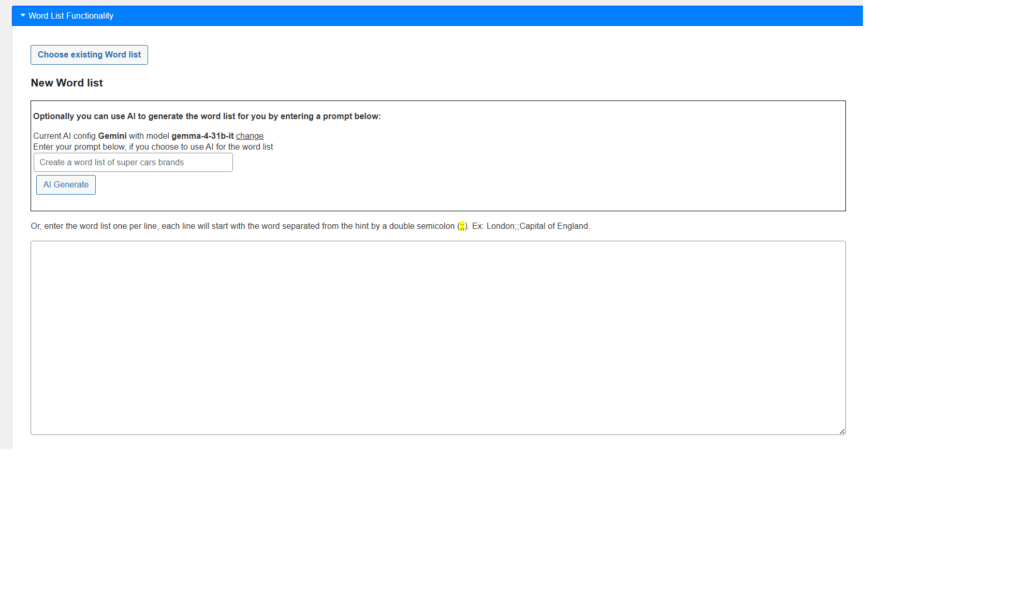
Creating a Crossword
The plugin divides this process into 2 steps:
- Creating a list of words and hints, one per line, separated by ;; (example: austria;;its Capital is the lovely city of Vienna).
- Generating the crossword from the list of words.
How to create a list of words the plugin can use?
You can load and use a previously saved list, or you can create a new list using any of the following options:
Option 1: AI-Generated word list
- In the Generate page, enter a topic prompt in the AI Generate field — for example: “Create a word list about the solar system”.
- Click AI Generate — the plugin sends your prompt to your configured AI provider and fills in a word list automatically.
- Review or edit the list, give it a title, and click Save.
Option 2: Manual word list
- In the Generate page, skip the AI section and type your word list directly into the text area
- Each line follows the format:
WORD;;Hint for this word- Example:
London;;Capital of England
- Example:
- Give the list a title, save it, then generate and save your crossword as above

Generating the crossword from the list of words
Once you have the list of words and hints in the control showed blank in figure 1, you can generate the Crossword in the following way:
- Expand the “Crossword Creation section (shown collapsed in figure 2 and expanded in figure 3).
- Set your desired grid size (rows and columns), then click Generate Crossword.
- Preview the crossword with Toggle Crossword Mode.
- Manually Add or Remove words in the visual editor.
- Click Save Crossword Data when you’re happy with it.
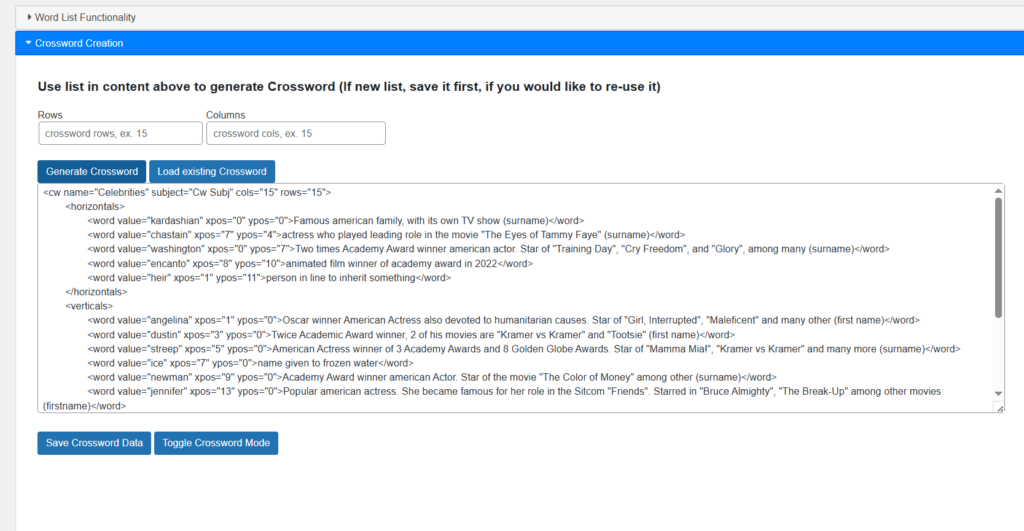
Figure 3 above shows the Text Mode view of the Crossword Creation pane. Figure 4 below, shows the Visual Mode view of the same pane, which allows you to make changes to the crossword.
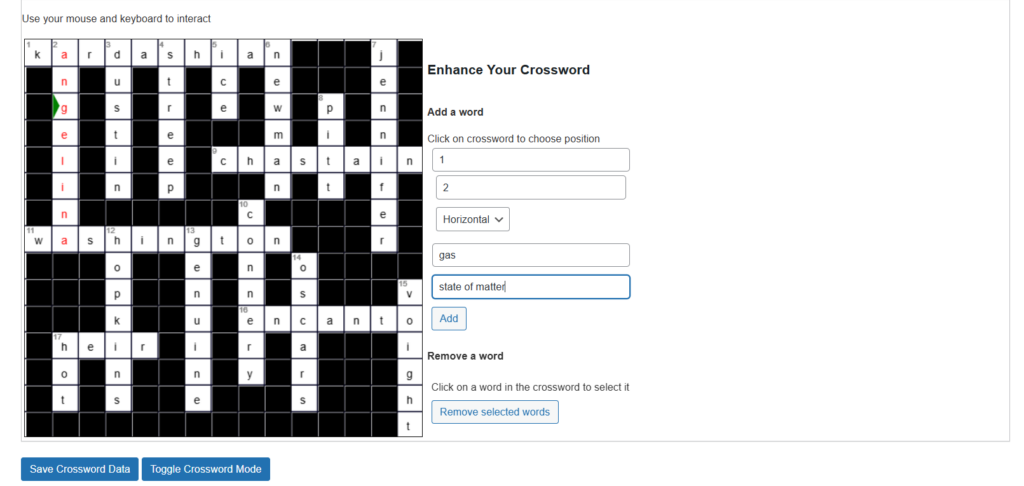
Manually enhancing the crosswords with additional words
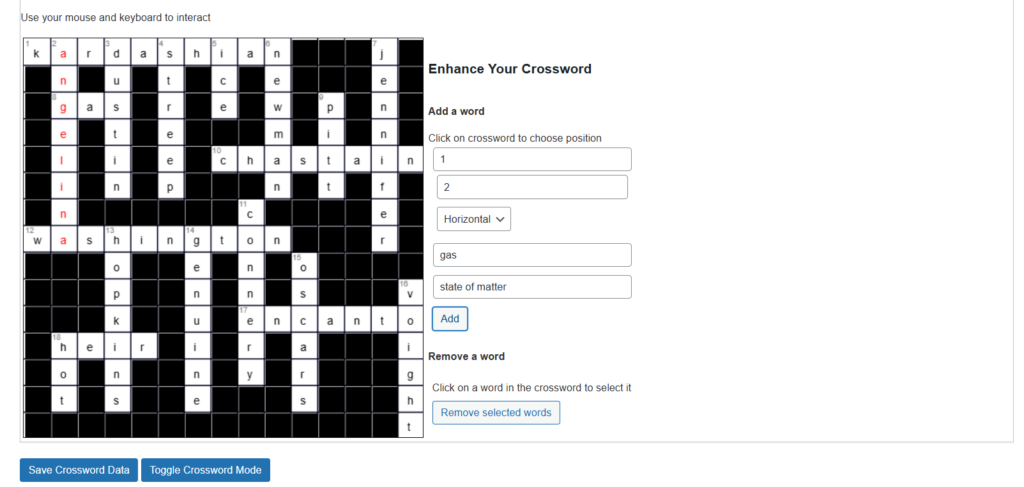
Figure 4 also shows a green pointer which appears at any point we left-click inside the crossword. Then on its right, under “Add a word”, we can see the coordinates of that position (column, row), which in the figure is (1,2). That is a convenient way of selecting the position where we want to add a word. Then the dropdown allows to select whether the word will be placed horizontally or vertically.
Next we add the word, followed by its hint (in the figure the word is “gas” and the hint is “state of matter”), and we press “Add”. Figure 5 below shows the word added to the crossword.
At this point, you have successfully created and saved a crossword. All that is left is using the Crosswords in a page or post so that your users can have fun solving it.
Embedding a Crossword in a Page or Post
Once a crossword is saved, adding it to your content takes only seconds:
- Open or create any page or post in the WordPress Block Editor.
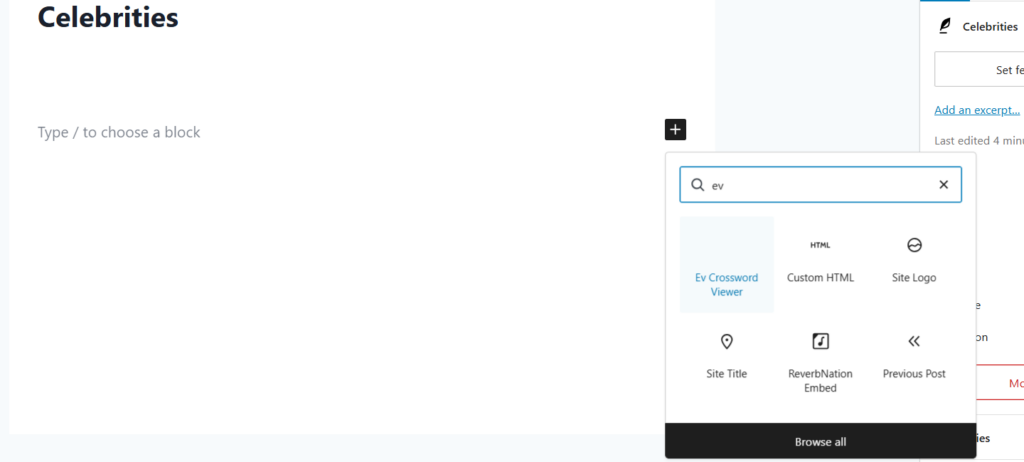
- Click the + block inserter and search for Crossword or type EV (see figure 6).
- Insert the EV Crossword block, and click on it if you don’t see its sidebar panel.
- The block’s sidebar panel shows your saved crosswords — click one to load it.
- The crossword preview renders right inside the editor.
- Publish the page — your readers can interact with the crossword immediately.
You can customise the crossword’s text and background colours from the block settings panel.
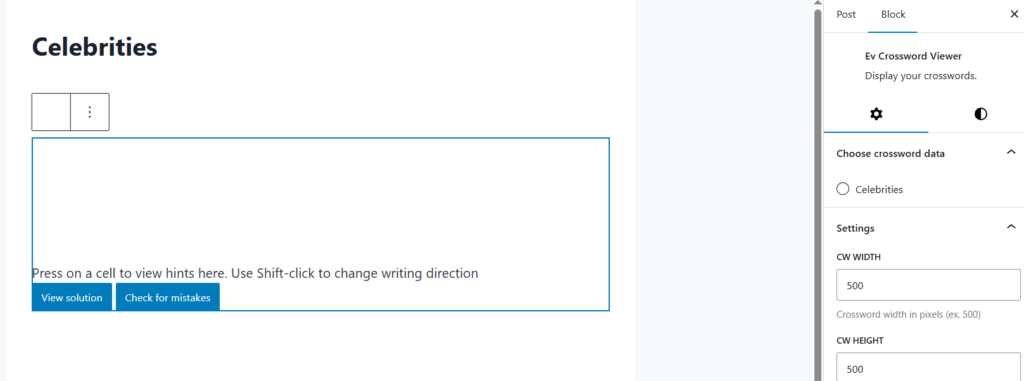
So, after you add the crossword block, you still have to select which specific crossword you wish to add to the page or post, as you could have many, and the block would not know which one you are interested in.
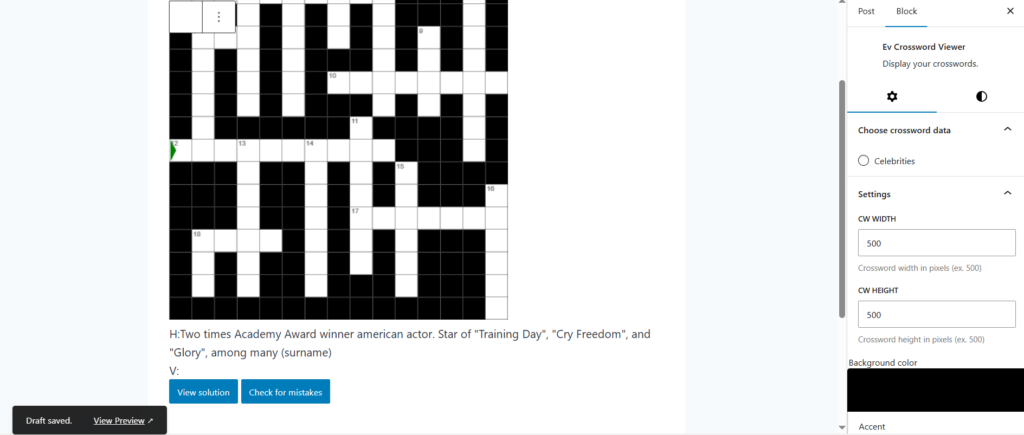
The crossword you choose will display inside the block. You can customise it, save the draft (it is a regular page or post after all), and preview it, or publish it.
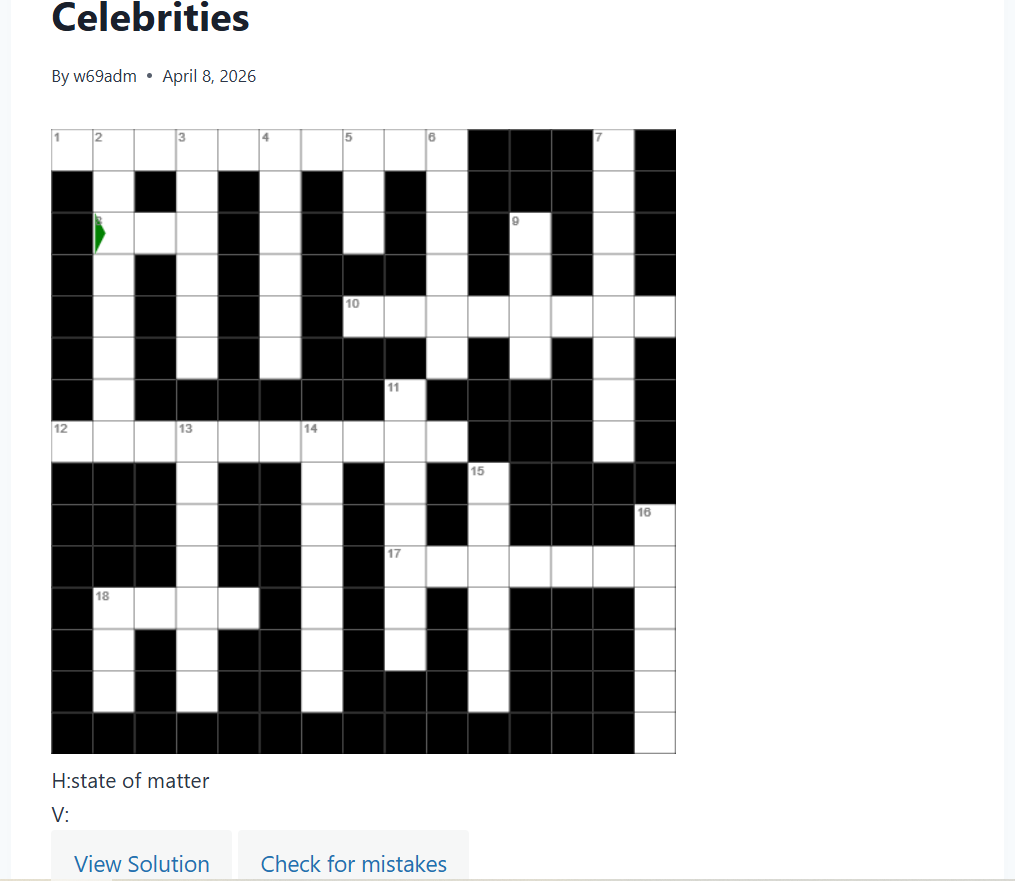
So, now you have your crossword created and added to a post or page. Because this is still a regular post, you can add additional content to it. You could choose to display the hints in a table, instead of relying on the hints displayed on the crossword, which in this version only show for the clicked area.
Give it a try, and report any bugs you find.
Thank you for reading!