
The EV-Crosswords WordPress Plugin
It is easy to add Crosswords (and Word Search Puzzles) to any WordPress based website, by using the Free https://wordpress.org/plugins/ev-crosswords/ WordPress plugin.
Start by adding the plugin to your WordPress installation. The plugin has a dependency on another plugin we developed for agentic and generative AI: https://wordpress.org/plugins/entgenai/, so you have to install and activate that plugin first, then install and activate ev-crosswords.
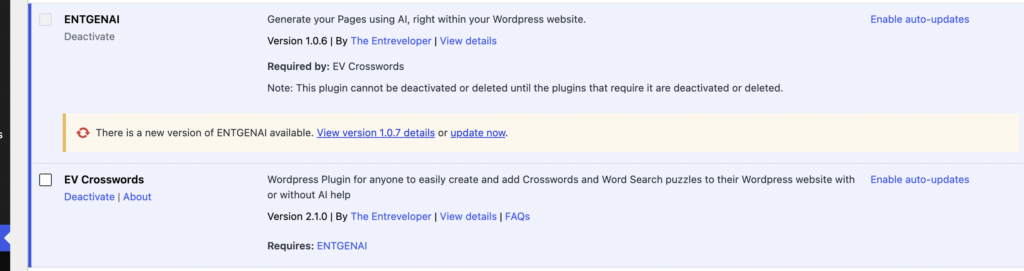
Configure EntGenAI with your AI Provider details
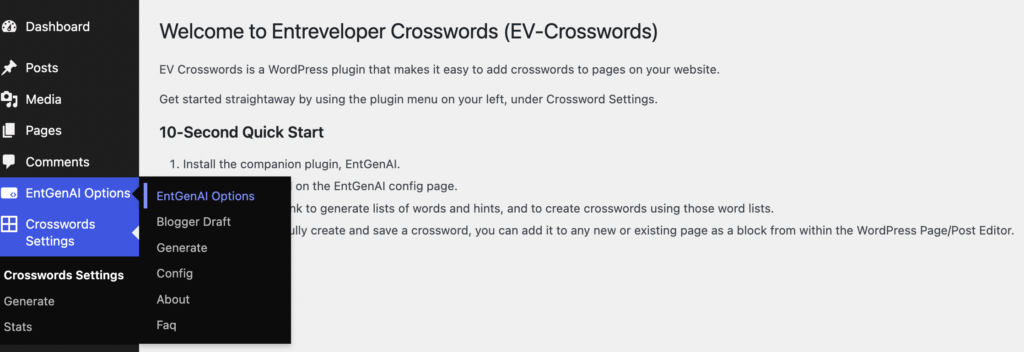
As shown above, after installing and activating the two plugins, new menu entries will appear on your admin dashboard: EntGenAI Options, which provides links to configure and use the plugin, and Crosswords Settings with options to make use of ev-crosswords.
In the EntGenAI Options, choose Config, and fill in your AI API details if you want to make use of AI to speed up puzzles generation. Note that you can also use the plugin without AI.
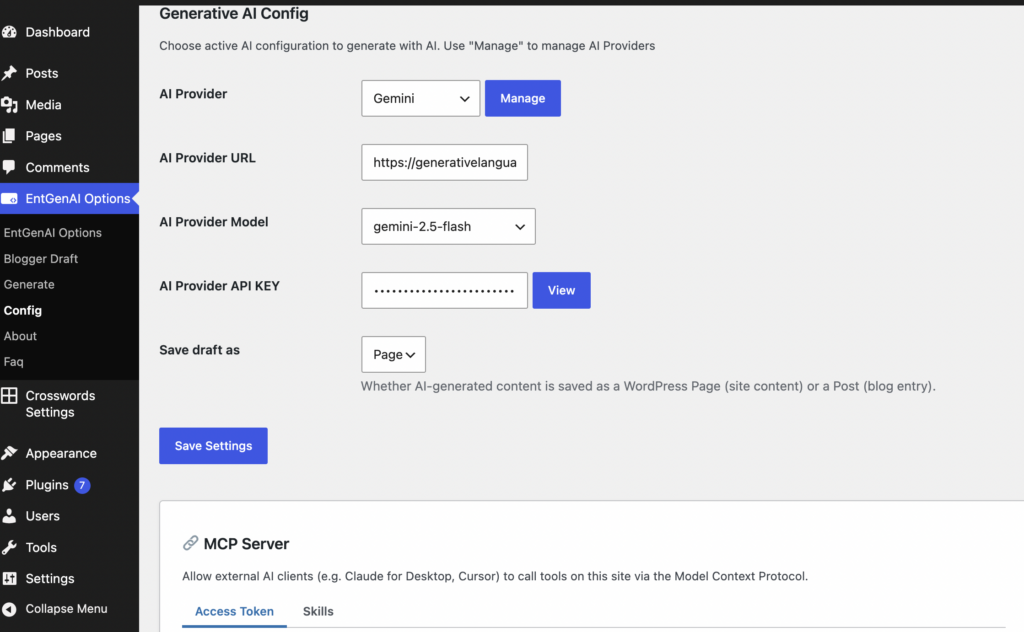
Figure 3 shows the configuration interface for EntGenAI, where you can choose your preferred provider (hopefully) from a list. Then choose the model you want to use from the list available models for that provider. Enter your API Key, which you obtain directly from your AI Provider. For the purpose of configuring it for ev-crosswords, you can leave any other options with their default values.
Creating Crosswords
Now go back to Crosswords Settings and choose Generate, as indicated in figure 4 below.
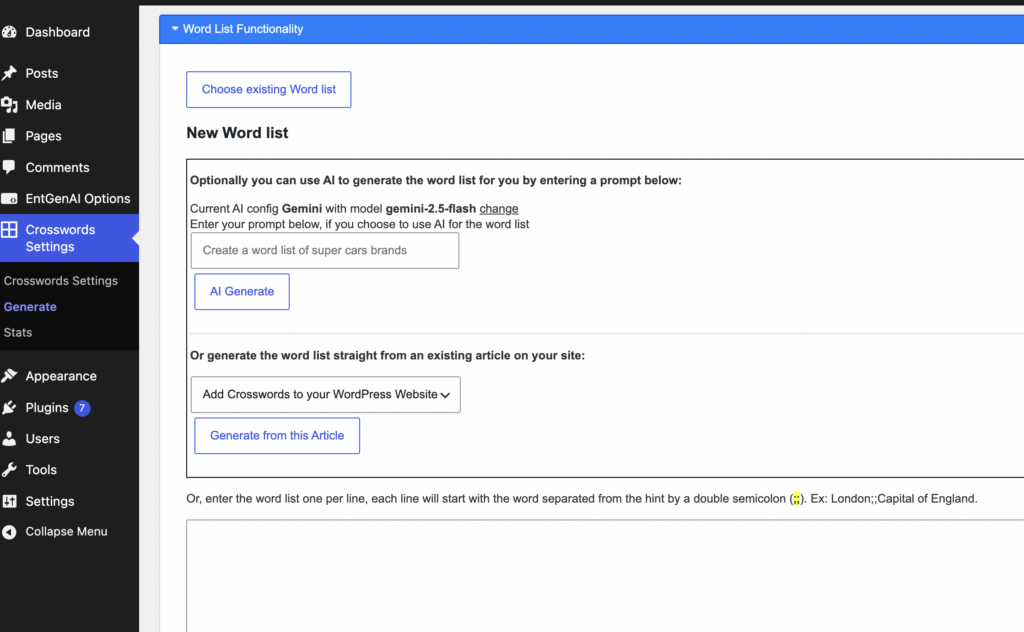
The first step in the EV-Crosswords puzzle creation workflow is to create a list of words and hints. This is the step where you can make use of AI, or decide to do it yourself.
Using AI to create your Word List
Figure 4, above, shows two ways in which you can create the list of words and hints using AI:
- Using a prompt. For instance: Create a word list of soccer stars.
- Generating the list directly from an existing article on your site.
Creating a Word List Manually
Alternatively, you can type your word list manually on the textbox provided below the previous options. The format to use is:
- One word per row, followed by double semi-colon (;;), followed by a short hint. Example: Cape Town;;Beautiful City where Table Mountain is located.
So, whether you type it manually, or generate it using AI, the word list will show in the word list textbox, similar to the following sample list:
ORIGAMI;;Japanese art of paper folding
VOLCANO;;A mountain with a lava-spewing crater
EIFFEL;;Iconic tower in Paris
YOGA;;A practice involving physical and mental exercises
ATLAS;;Collection of maps
SUSHI;;Popular Japanese dish
PYTHON;;Programming language popular for data science
EINSTEIN;;Famous physicist
CHESS;;Board game
JAZZ;;A music genre
Below the textbox there is an option to give a name to the list and save it. You can access saved lists from the same puzzles screen on figure 4. There is an option at the top of the screen that allows you to “Choose existing word list”.
Creating a Crossword from the Word List
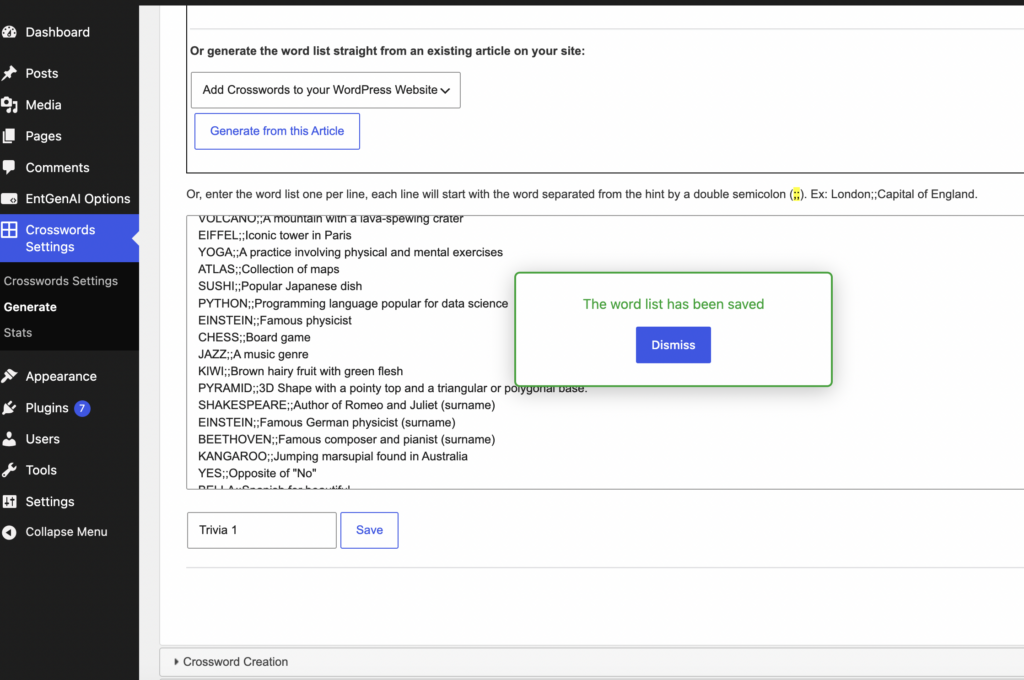
Once you have your word list, whether you save it or not, you can create a crossword from that list.
Start by expanding the “Crossword Creation” section (see it at the bottom of figure 5).
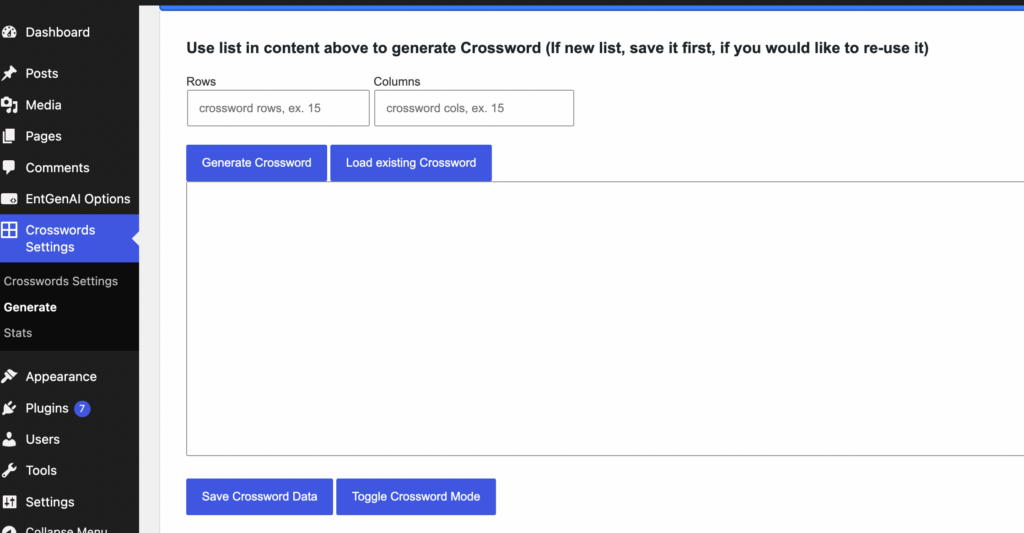
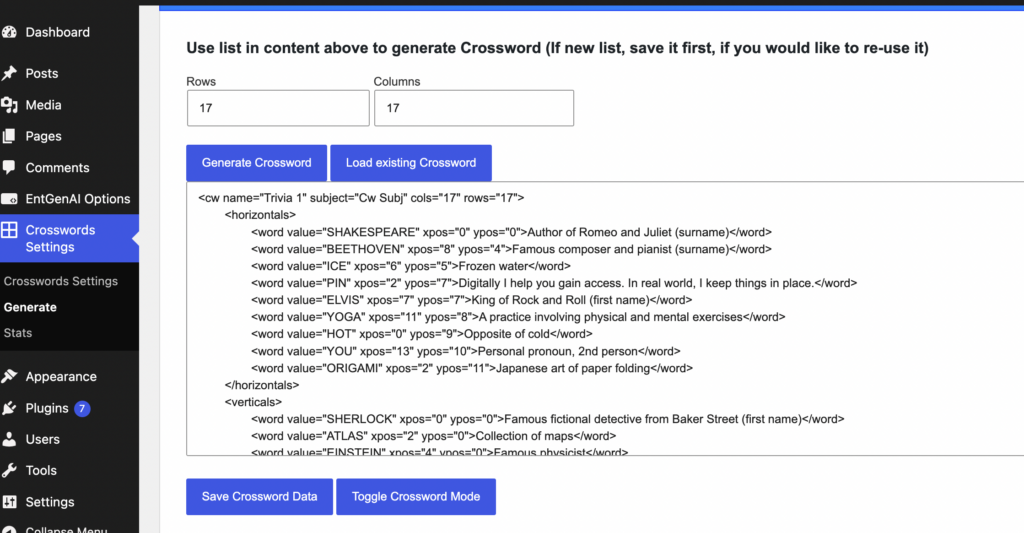
As per figure 6, just enter the desired number of rows and columns for your crossword (default is 15 rows and 15 columns), and press “Generate Crossword”. Your crossword will be created and will display by default as an xml file in the textbox below the “Generate Crossword” button (see Figure 7 below). You can use “Save Crossword Data” to save your crossword, so you can load it later in this editor using “Load existing Crossword”, or you can press “Toggle Crossword Mode” to view and edit the crossword.
Your generated crossword is not set in stone. You can use the “Toggle Crossword Mode” button to view the crossword with a visual editor that allows you to get an idea of how it will show in the frontend, and to add and remove words to add additional crossings and complexity to the crossword.
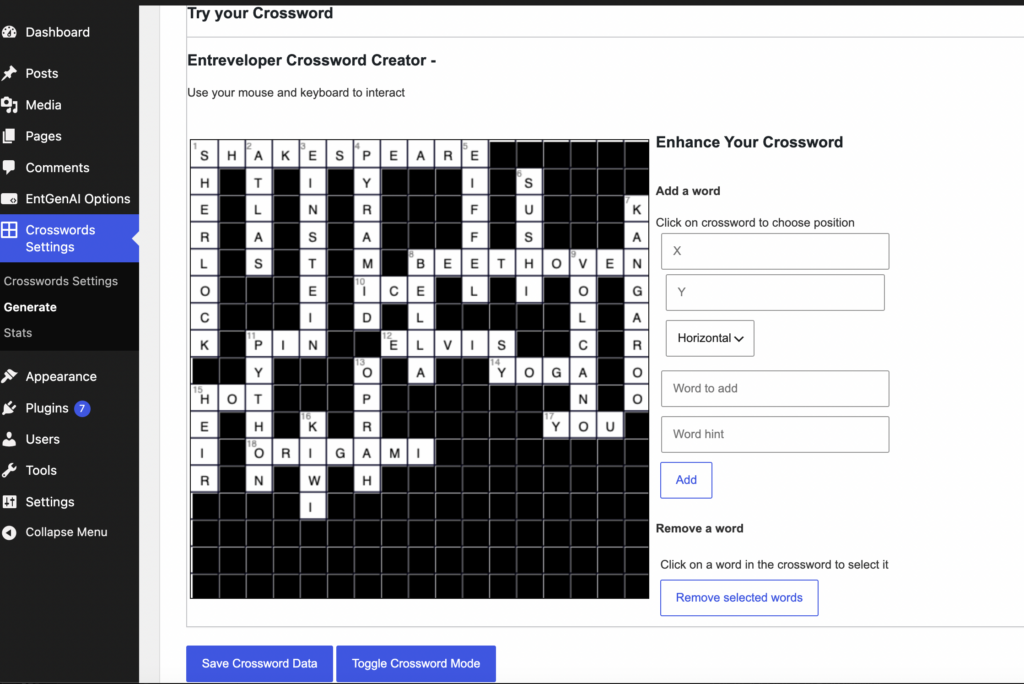
Figure 8 shows the visual Crossword editor. Pressing on a word in the crossword will show its coordinate in the (X,Y) position controls. If you have a word you would like to add at that position, to cross it with the selected word, then add the word and its hint in the controls below those positional controls, select its direction (Horizontal or Vertical), and press the “Add” button. You should see the new word in the crossword.
If instead, you want to delete the selected word, then press the “Remove selected words” button.
At any time, you can save the crossword using the “Save Crossword Data” button.
Creating a Word Search Puzzle from the Word List
Apart from creating a Crossword, you can also use the same word list to create a Word Search Puzzle.
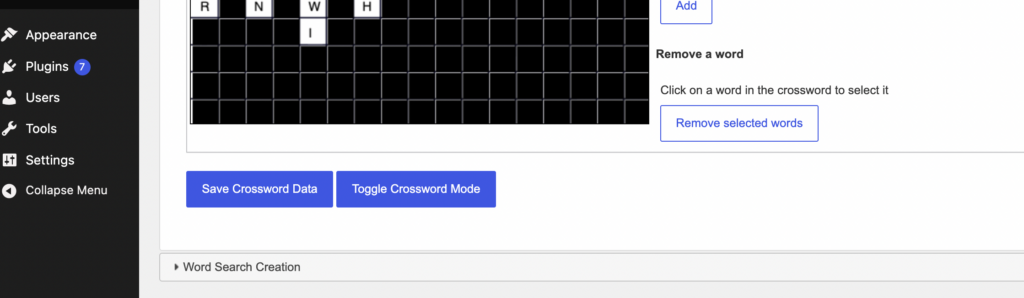
Expand the Word Search Creation section below the crossword (see Figure 9). You should see an interface like the on shown in figure 10.
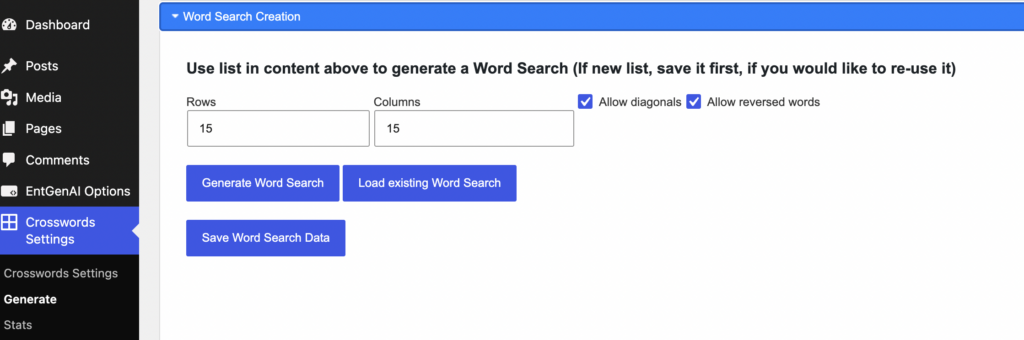
Select the desired number of rows and columns, and check/uncheck any of the other options as desired. Then click “Generate Word Search” to create a Word Search Puzzle from the current word list.
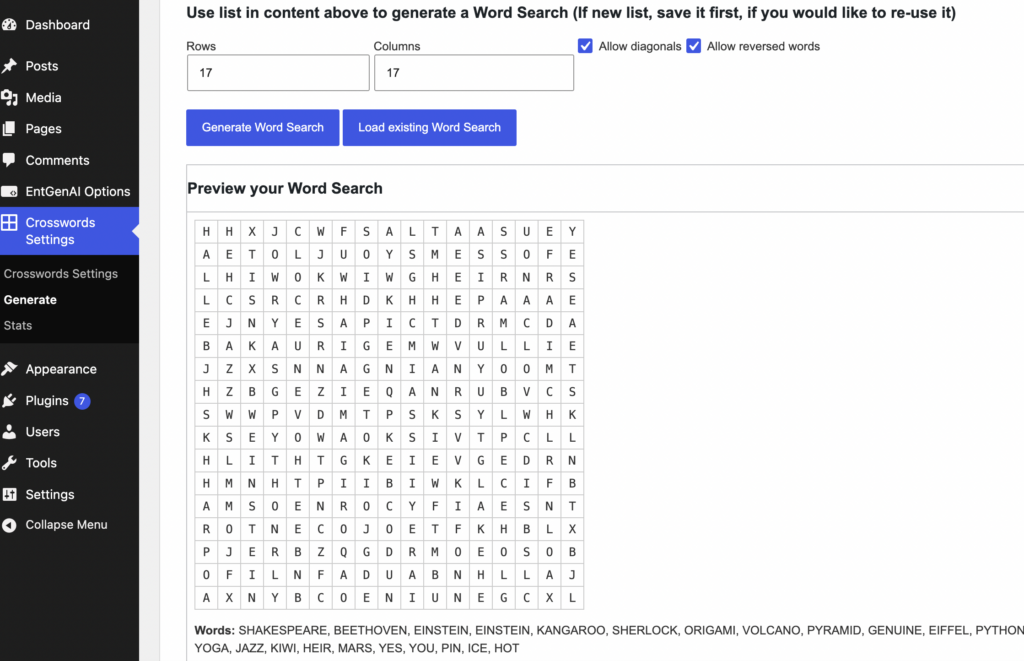
Figure 11 shows an example of a generated Word Search Puzzle. Below the puzzle there is a “Save Word Search Data” button, which you can use to save the puzzle. Saved Word Search Puzzles can be reloaded in this interface using the “Load Existing Word Search” button above the puzzle, and they can be added to posts and pages using the block editor.
Adding Puzzles to your Posts
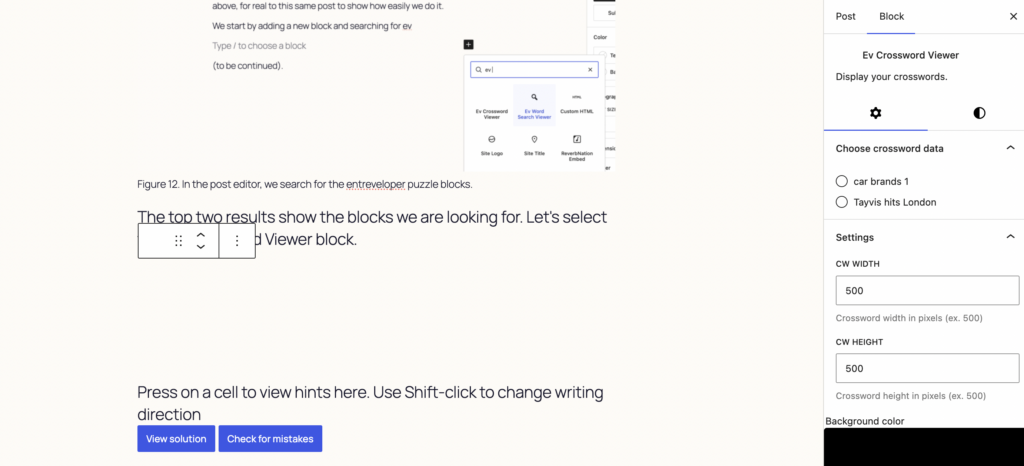
Let’s add those puzzles we created, and showed as screenshots above, for real to this same post to show how easily we do it.
We start by adding a new block and searching for ev
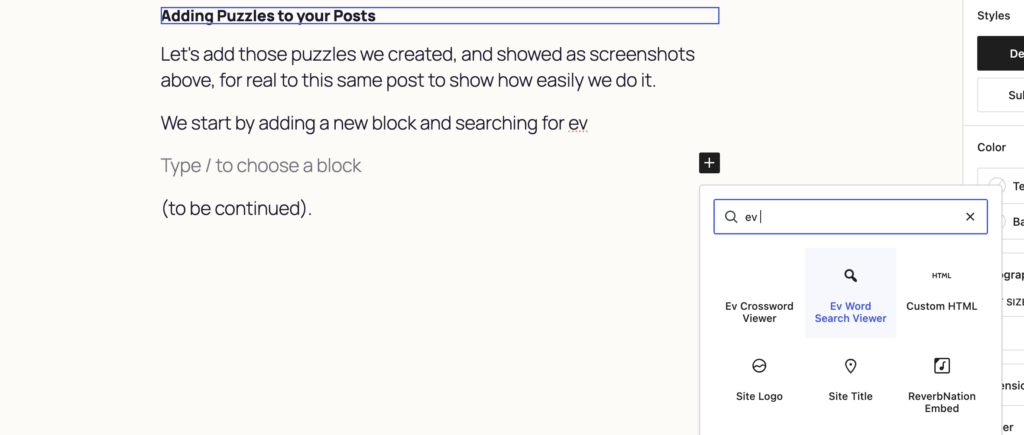
The top two results show the blocks we are looking for. Let’s select the Ev Crossword Viewer block.
The block is added, with its controls, but it does not have content yet.
As you probably guessed, since this block is a Crossword viewer, its content is the crossword data we saved when creating a crossword.
Note that when the Crossword viewer block is selected, we can see in the panel on the right, under the Block tab, what crossword data is available for us to add. Selecting one entry there will result on the crossword data being loaded into the viewer:
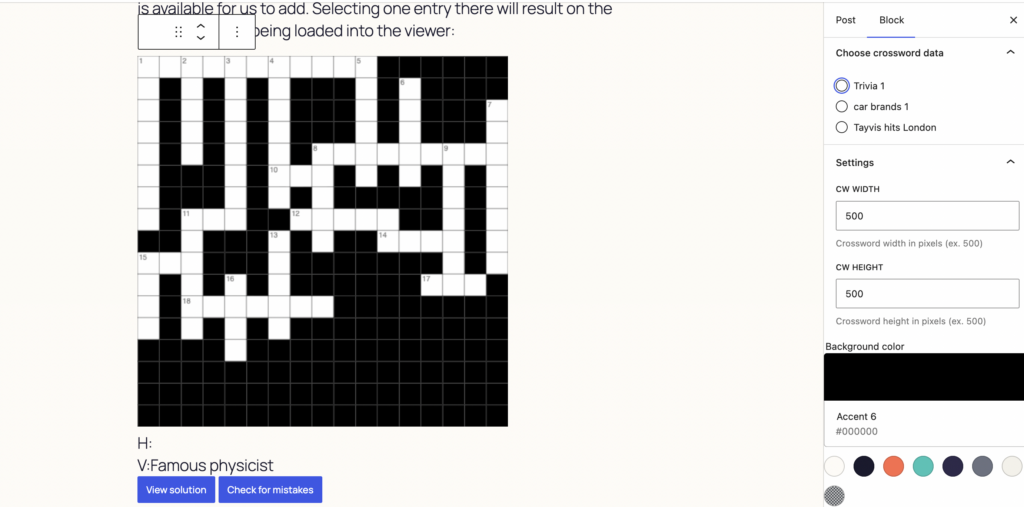
The viewer in the post editor allows you to test how the crossword would look on the frontend, when the post is viewed. You can press on the first cell of a word (a cell with a number in it) to view its hint.
You can also click “View Solution” to solve the crossword, “Check for mistakes” after trying to solve it for the viewer to highlight any mistakes, and on the right hand side, you can customize the block (change its background, etc).
Once satisfied, you can save the post and view it. Below is the real crossword we were working on. You can try it right now.
Similarly, we can type the + sign on a new block entry, search for “ev “, and select and insert the Ev Word Search Viewer.
Its interface is a lot simpler. You will only see a sentence asking you to choose a word search puzzle, and then its settings panel on the right hand side, under the Block tab, when the block is selected.
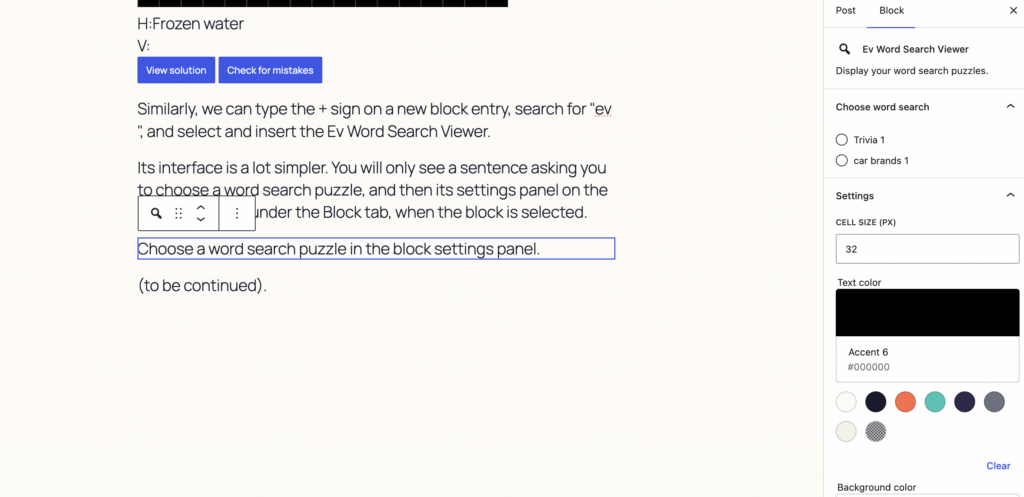
Selecting any available word search data will populate the block. Below you can see the actual populated Word Search View block, so you can actually try finding the hidden words from the list below it.
Loading word search…
Like with the Ev Crossword viewer, you can also customize it using its panel on the right hand side.
Try it on your side (and on your site!), and if you are a publisher with a few (or many) sites, or you would like additional features, such as automation so that for every new block, related puzzles are automatically created and saved, consider purchasing one of the available pro licenses.
Leave a Reply
You must be logged in to post a comment.